
Of course, just about everyone knows how to schedule a meeting in Google Calendar. Create an event, add your guests, hit save. Easy. But if that's all you're doing, you're missing out on the features that actually eliminate the frustrating back-and-forth emails and give you back huge chunks of your day.
Go Beyond the Basics of Google Calendar Scheduling

Sticking to the most basic functions of Google Calendar is a bit like using a smartphone only to make calls. You’re leaving its most powerful, problem-solving features on the table. It's time to graduate from just creating events and start tackling the real scheduling headaches you face every day.
With hybrid work becoming the new normal, getting scheduling right is more critical than ever. We're now spending an average of 11.3 hours per week in meetings—a number that has tripled since 2020. This explosion in meetings means you need tools that can handle the complexity without adding to the chaos.
Find the Perfect Time Instantly
One of the most valuable yet surprisingly overlooked features is "Find a time." Instead of the usual "Does Tuesday at 2 work for you?" dance, this tool overlays your guests' calendars right onto yours, showing you exactly who is free and when.
- How it works: Once you've added guests to a new event, just click the "Find a time" tab. Google Calendar instantly gives you a side-by-side view of everyone's schedule, highlighting the open slots.
- Why it's a game-changer: This turns what could have been a dozen emails into a single click. No more guessing games.
This simple feature is your first and best defense against scheduling tag. You're not just guessing anymore; you're making a data-driven decision that respects everyone's calendar.
Set It and Forget It with Recurring Meetings
For all those routine check-ins—weekly team syncs, monthly one-on-ones, project stand-ups—setting up a recurring event is a must. You wouldn't manually set up the same meeting 52 times for a year, right?
Just use the dropdown menu next to the date and time fields. You can choose a repeat cadence like daily, weekly, or monthly, or even set a custom interval. One simple action populates your calendar for months to come, saving you a ton of administrative work and ensuring nothing gets missed.
For more advanced strategies on automating your scheduling workflows, check out our guide on the best way to schedule meetings.
Unlock Powerful Scheduling Features You're Missing Out On

If you're only using Google Calendar to send basic event invites, you’re leaving a ton of productivity on the table. It's time to dig a little deeper and turn your calendar from a simple appointment book into a genuine command center for your workday.
One of the biggest game-changers for anyone who schedules meetings is the "Appointment schedule." This isn't just another event. It’s a personal booking page that shows your real-time availability.
Instead of the endless back-and-forth emails trying to find a time, you just send one link. Clients, colleagues, or prospects can then pick a slot that works for them. Simple.
Automate and Organize Your Meeting Workflow
Beyond booking pages, a few small tweaks can bring a massive amount of clarity to your schedule. The trick is to make the calendar do the heavy lifting for you.
- Integrate Google Meet: Stop fumbling around for video call links. When you create an event, just click "Add Google Meet video conferencing." A unique link is instantly generated and dropped right into the invitation, so everyone knows exactly where to be.
- Attach Documents Directly: How many times have you shown up to a meeting where someone hasn't read the agenda? Kill that problem by attaching documents directly to the calendar invite. Use the little paperclip icon to add Google Docs, sheets, or presentations. Everyone arrives prepared and on the same page.
- Use Event Colors for Visual Sorting: A calendar filled with events all in the same color is just a wall of text. It's overwhelming. Start assigning colors to different meeting types—maybe blue for internal team syncs, green for client calls, and red for urgent deadlines. This quick visual sorting helps you process your day at a glance and know where to focus.
Think of your calendar not just as a list of appointments, but as a visual dashboard for your week. Using colors and attachments isn't just a neat trick; it's a strategic way to reduce mental clutter and increase meeting effectiveness.
When to Use Appointment Schedules
The "Appointment schedule" feature is incredibly versatile, but it really shines in a few key scenarios. It's perfect for anyone who needs to let others book time with them without constant, manual coordination.
You should absolutely be using it for things like:
- Client Consultations: Let potential clients book a discovery call right from your website.
- Office Hours: Allow students or team members to reserve a specific slot without the email chain.
- User Research Sessions: Streamline scheduling with participants across different time zones.
By setting up a dedicated booking page, you’re sending a clear message: you’re professional, organized, and you value both their time and your own. It sets a positive tone before the conversation even starts.
Use Booking Links to Automate Your Schedule
The single biggest time-waster when scheduling meetings is the endless chain of "what time works for you?" emails. Booking links, or what Google Calendar calls "appointment schedules," were designed to kill this problem for good.
This feature gives you a personal booking page where anyone can see your real-time availability and grab a slot that works for them. Once they book, the event is automatically added to both of your calendars. This isn't just about convenience—it's about giving off a polished, professional vibe from the very first interaction. Think of it as your own personal scheduling assistant, working 24/7.
Customize Your Availability
The real power of a booking link is in the details. You get complete control over when people can schedule time with you, which is key to preventing random meetings from derailing your focus.
First, define your core working hours. Are you open for calls from 9 AM to 5 PM, or do you block off your afternoons for deep work? Set those boundaries first. Next, you'll want to add buffer times between meetings. For instance, setting a 15-minute buffer gives you a moment to grab coffee, review notes, and mentally reset before the next call. It's a simple trick to avoid the burnout of back-to-back sessions.
Setting up a booking page is a proactive move. Instead of reacting to meeting requests all day, you're directing people to a system that respects your time and workflow. That's crucial for staying productive.
Create Links for Different Meeting Types
A one-size-fits-all approach to meetings rarely works. The smart move is to create multiple, unique booking links for different purposes, each with its own set of rules.
- For a 30-minute discovery call: Create a specific link for new prospects with a shorter duration.
- For a 60-minute client check-in: Have a separate link for existing clients that allows for a longer, more in-depth conversation.
- For 15-minute internal syncs: Keep a quick-meeting link handy for colleagues to grab a brief moment with you.
This segmented approach makes sure you're allocating the right amount of time for every single interaction. And it solves a massive problem for most people—in fact, studies show that 54.6% of users struggle with just getting visibility into when people are free. Booking links tackle this head-on by showing a clear, accurate view of your open slots.
Research from scheduling experts at Reclaim.ai digs into how modern tools are solving these exact issues. By automating this piece of your workflow, you’re not just saving a few minutes; you're reclaiming hours every single week.
An organized calendar is the difference between a productive week and a chaotic one. Let's be honest, anyone can create an event. The real magic happens when you move beyond that and start managing your calendar like the strategic tool it is—not just a to-do list someone else controls.
It really starts before you even think about sending an invite. Have you ever heard of time blocking? It's a game-changer. You proactively carve out chunks of your day for deep, focused work. By scheduling these non-negotiable blocks, you put a protective bubble around your most important tasks, ensuring meeting requests don't completely swallow your schedule.
Set Clear Expectations from the Start
Another simple habit that pays off big time is always including a clear agenda in your meeting invitations. This one move can dramatically boost a meeting's efficiency. Without an agenda, a 30-minute sync can easily spiral into an hour of unstructured chatter. Everyone shows up knowing why they're there and what needs to be decided.
A little bit of strategic formatting also brings instant clarity to a packed week:
- Color-code your events: This is my personal favorite. I use green for client meetings, blue for internal project work, and red for personal appointments. It turns my calendar into a visual dashboard I can understand at a glance.
- Be smart with reminders: Don't let your calendar bombard you. Set one or two reminders for your most important meetings. This keeps you on track without adding to the digital noise we're all trying to escape.
This infographic breaks down the best times to send invites, depending on how quickly you need to meet and how responsive your attendees are.
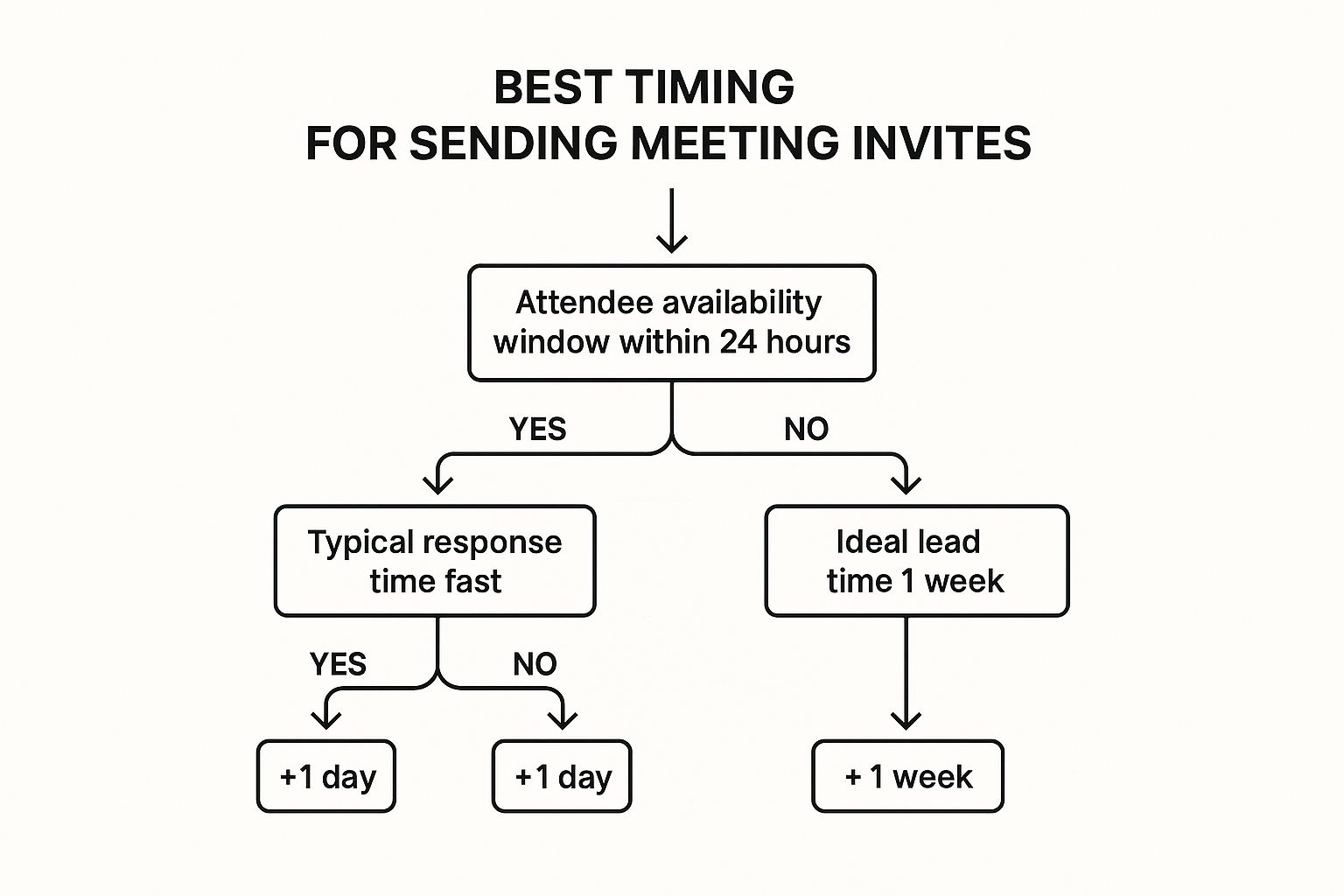
As you can see, for those urgent meetings with people who are quick to reply, sending an invite within 24 hours is your best bet. But for teams that need a bit more of a heads-up, a one-week notice works much better.
And when you need to make sure leads are distributed fairly across the team? That's a whole different ballgame. You can learn more about how to handle that with scheduling round robin meetings in our detailed guide.
Connect Google Calendar with Your Favorite Tools
Using Google Calendar by itself is great, but its real power is unlocked when you start connecting it with the other apps you use every day. By integrating third-party tools, you can build a seamless system where your calendar is the true command center for all your commitments.
This approach saves you from the constant headache of flipping between tabs and manually updating everything. For example, connecting your calendar to a project management tool like Asana or Trello is a total game-changer. Project deadlines just pop up on your calendar automatically, giving you one unified view of your meetings and your task due dates.
Expand Your Scheduling Capabilities
While Google’s built-in features are solid for basic scheduling, specialized apps like Calendly can handle far more advanced booking and routing logic. These tools were built from the ground up to manage complex scenarios, making them perfect for sales teams or anyone juggling a high volume of appointments. If you want to see how other industries tackle automation, it’s interesting to see how free social media schedulers approach similar planning challenges.
Integrating your tools isn't just about convenience; it's about creating a single source of truth. When your project manager, CRM, and calendar all speak the same language, you reduce errors and reclaim valuable focus time.
Of course, no system is perfect. Data on search trends for the 'google calendar app' shows just how popular it is, but it also reveals that about 24% of users run into syncing issues, especially with Microsoft tools. This just goes to show how important it is to pick integrations that are known to work well with your specific software stack. You can dig into more insights about digital calendar trends on Accio.com.
Answering Your Top Google Calendar Scheduling Questions

Even after you get the hang of Google Calendar, a few practical questions always seem to pop up when you're deep in the scheduling weeds. I've heard them all. Getting these sorted out will help you clear common hurdles and really start using the platform to its full potential.
One of the biggest time-sinks is the endless email back-and-forth just to find a time to meet. The best way to kill that problem for good is with Google Calendar's "Appointment schedules" feature. It generates a personal booking page that shows your real-time availability. You just share the link, and people can book a slot that instantly appears on both of your calendars. No more manual coordination. It's a game-changer.
Clearing Up Common Mix-Ups
Now, people often confuse "Appointment Slots" with the newer "Appointment Schedules." Let’s clear that up. "Appointment Slots" is the older version, and it really only works well for people inside the same company.
Appointment Schedules is the modern, more powerful tool you should be using. It gives you that professional booking page and much better customization options. If you're scheduling with anyone external—clients, candidates, partners—this is the one you want.
Another skill that’s absolutely essential, especially for executive assistants or team leads, is scheduling a meeting on behalf of someone else.
- How it works: If you have permission to manage their calendar (a must-have first step), just create the event as you normally would. Then, from the calendar dropdown menu, simply select their name instead of your own.
- The result: The invitation goes out from them, and the event lands on their calendar, not yours. Clean and professional.
Don’t forget to add context to your invites. Use the description box to paste in a clear agenda and attach any relevant documents with the paperclip icon. This simple step ensures everyone shows up ready to contribute.
If you want to really nail that initial outreach, our guide on how to write the perfect email for a meeting invitation is packed with templates and pro tips. Getting that first touchpoint right sets the tone for a productive meeting before it even starts.
Ready to stop leads from slipping through the cracks? Distro transforms your demo request forms into booked meetings instantly. By intelligently routing prospects to the right sales rep’s calendar the moment they show interest, Distro helps you convert high-intent leads 3X more effectively. See how it works at https://distro.so.